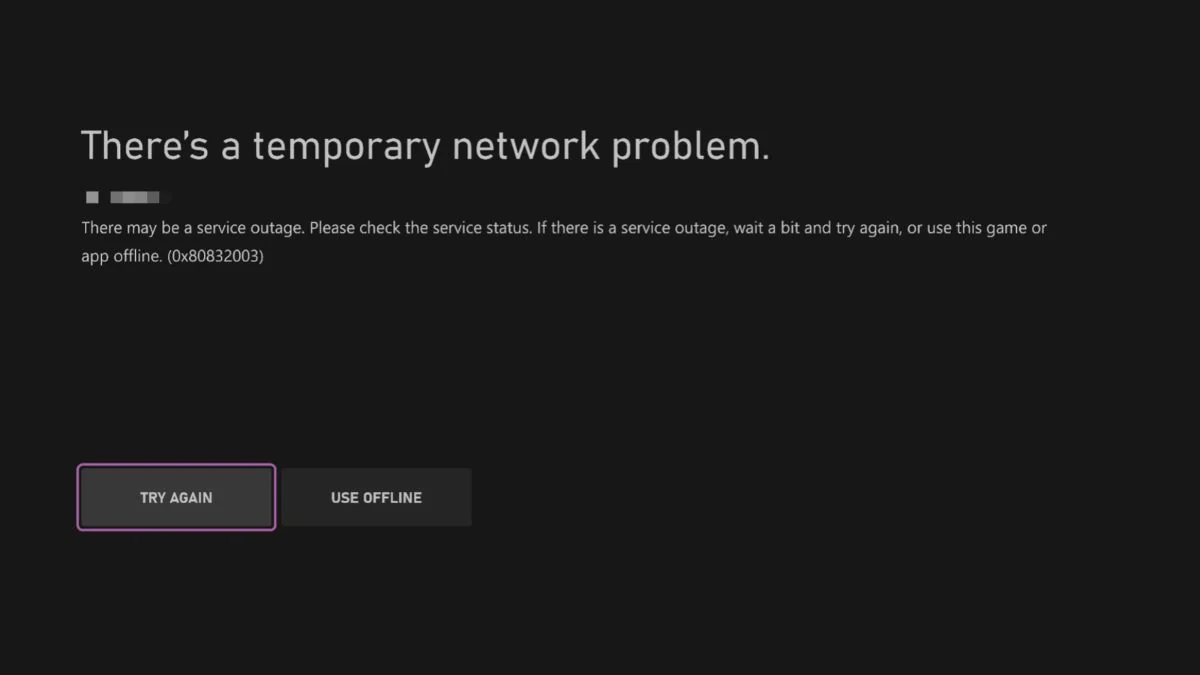
Trying to launch GTA 6 on Xbox Series X|S only to see a “Temporary Network Problem” message is an especially frustrating way to start playing.
The error can appear even when the game is installed correctly, leaving players stuck at the launch screen.
The error code to look out for is 0x80832003. It is associated with temporary Xbox network problems, so the issue may have nothing to do with GTA 6 itself.
During a major release, a spike in players trying to access the game can also make temporary service problems more noticeable.
The first thing to try is surprisingly simple: select Try Again and give the connection another moment.
If that doesn’t work, there are several other checks worth trying before changing anything on your console.
How to Fix GTA 6 Temporary Network Problem on Xbox?
If GTA 6 displays error 0x80832003 when you try to launch it, start with the following steps.
1. Select Try Again
The simplest workaround is to select Try Again on the error screen. If the problem is caused by a temporary Xbox network issue, another connection attempt may be enough to get past it.
You might need to try more than once. However, repeatedly pressing the button won’t fix an ongoing service outage, so move on to the next step if the error keeps returning.
2. Check Xbox Network Status
Before changing your console settings, check whether Microsoft is experiencing problems.
Visit the official Xbox Network Status page and look for reported issues affecting account sign-in, gaming or other relevant services.
If Microsoft reports an outage, there’s probably nothing you can do locally to resolve it. Wait for the service to recover, then try launching GTA 6 again.
3. Check Rockstar Games Service Status
Xbox isn’t the only service worth checking. Rockstar’s services can also experience interruptions, particularly when players are trying to access a newly released game.
Visit the Rockstar Games Service Status page to see whether the studio is reporting problems with its services.
If Xbox reports everything is operational but Rockstar lists an issue, waiting for Rockstar to resolve it may be the only option.
4. Restart Your Xbox Series X|S
If both service-status pages look normal, restart your console.
- Press the Xbox button on your controller.
- Open Profile & system.
- Select Power.
- Choose Restart console.
- Wait for the console to boot back up, then launch GTA 6 again.
Use the full restart option rather than simply returning to the dashboard. This can clear temporary system issues that may interfere with network connections.
5. Test Your Internet Connection
A problem with your home network can also prevent the console from connecting properly.
On your Xbox, follow these steps:
- Press the Xbox button.
- Open Profile & system and select Settings.
- Go to General.
- Open Network settings.
- Select Test network connection.
If the test reports a connection problem, check your Wi-Fi or Ethernet connection before trying GTA 6 again.
6. Restart Your Router
If your Xbox connection appears unstable, restart your router and modem.
Unplug both devices from their power outlets and wait around 30 seconds before reconnecting them. Give your internet connection a few minutes to return, then try launching the game.
If possible, connect your Xbox through an Ethernet cable to see whether a wired connection makes a difference.
7. Check Whether Other Xbox Games Work
Try launching another game or using an Xbox network feature.
This helps narrow down the problem:
- Other games also have connection problems: The issue may involve Xbox services, your account or your internet connection.
- Other games work normally: The problem may be specific to GTA 6 or the services it needs.
- Only one account has the problem: Signing out and back into your Xbox profile may help identify an account-related issue.
This simple test can save time by showing whether the problem affects the entire console or just one game.
8. Clear the Xbox Console Cache
A full power cycle can help clear temporary data and reset the console’s current system state.
- Turn off your Xbox completely.
- Unplug its power cable from the outlet.
- Wait approximately two minutes.
- Plug the power cable back in.
- Turn on the console and try GTA 6 again.
This doesn’t delete your installed games or saved progress. It simply gives the console a fresh start.
9. Check Your NAT Type
A restrictive network configuration can sometimes interfere with Xbox connectivity.
To check your NAT type:
- Open Settings on your Xbox.
- Select General.
- Go to Network settings.
- Look for NAT Type.
An Open NAT generally provides the fewest connectivity restrictions. Moderate or Strict NAT can cause problems with certain network features.
If your NAT type is Strict or unavailable, check your router settings or contact your internet provider before changing advanced network configurations.
10. Check for Xbox System Updates
An outdated console system version can sometimes cause unexpected problems.
Open Settings, select System, and then choose Updates. Install any available system update and restart the console if prompted.
Once the update is complete, try launching GTA 6 again.
Do You Need to Reinstall GTA 6 to Fix Error 0x80832003?
No, reinstalling GTA 6 should not be your first troubleshooting step.
The 0x80832003 error is associated with a temporary Xbox network problem.
Deleting and downloading the entire game again is unlikely to help if Microsoft’s services are experiencing an outage.
Start by checking Xbox and Rockstar’s service-status pages, restarting your console and testing your internet connection.
Reinstallation is worth considering only if other signs point to a damaged or incomplete game installation and the network services are working normally.
Otherwise, it can waste hours of download time without addressing the actual problem.
GTA 6 Xbox Network Error: What If Nothing Works?
If you’ve tried everything and GTA 6 still displays error 0x80832003, the problem may be outside your control.
A temporary Xbox service disruption can prevent the game from connecting even when your console and internet connection are working properly.
In that situation, waiting for Microsoft to restore the affected service is usually the best option.
Keep the Xbox Network Status page and Rockstar Games Service Status page handy, and try launching the game again once the relevant services are back online.
Most importantly, don’t rush to delete GTA 6 or reset your console. A temporary network error doesn’t automatically mean something is wrong with your installation.