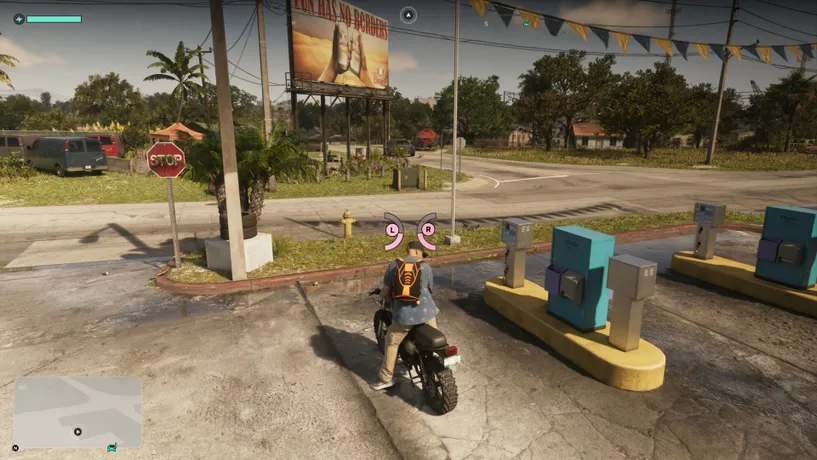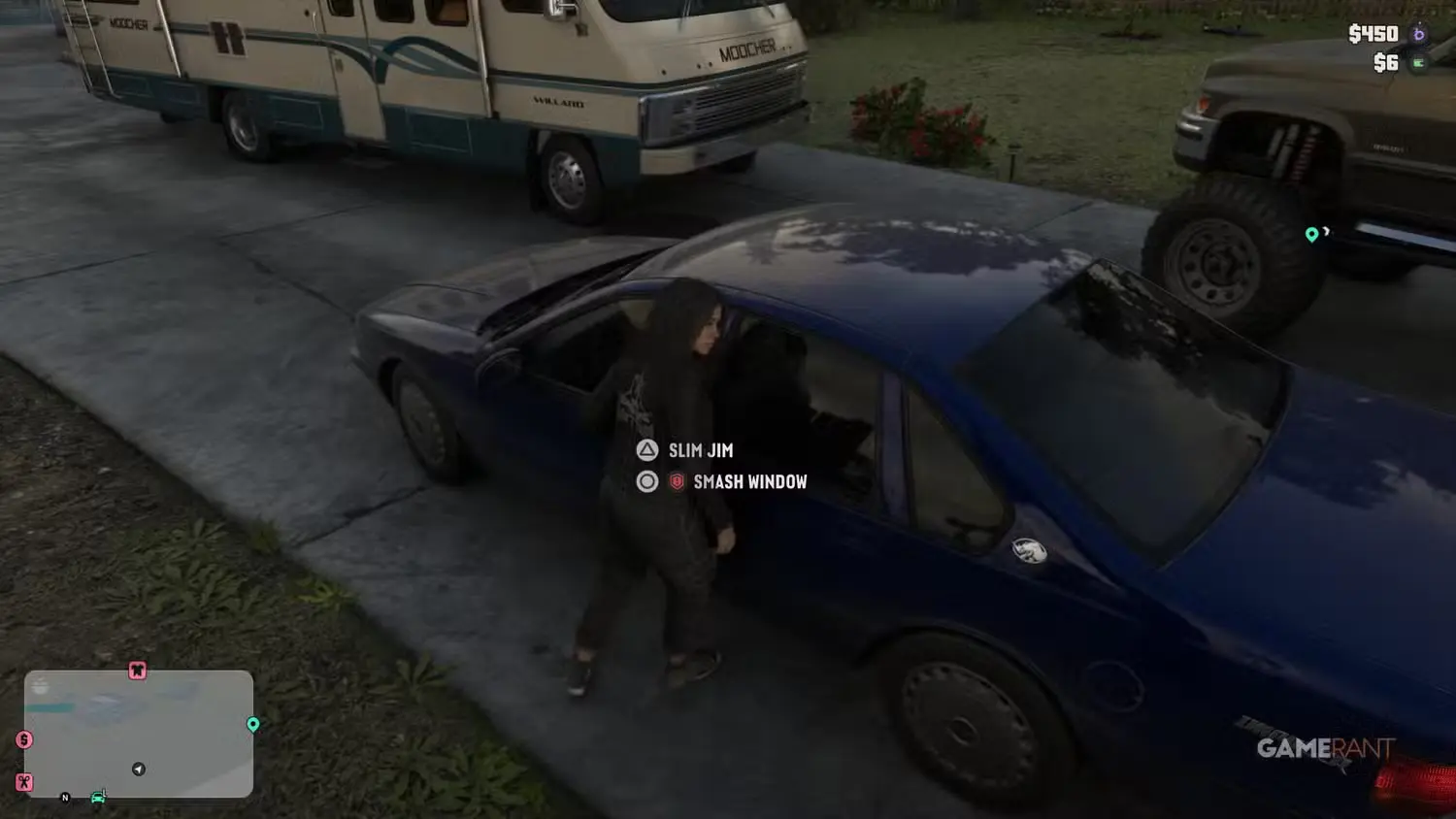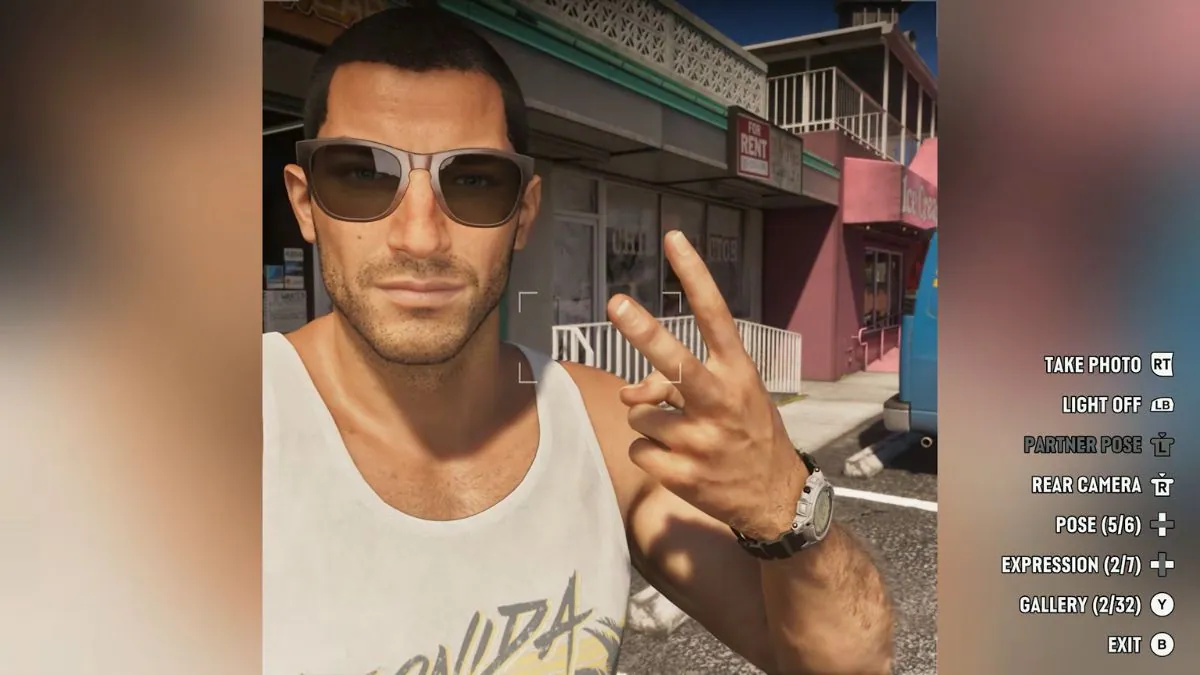
If you enjoy taking screenshots and capturing beautiful moments in GTA 6, you’re going to have a lot of fun with the game’s Photo Mode.
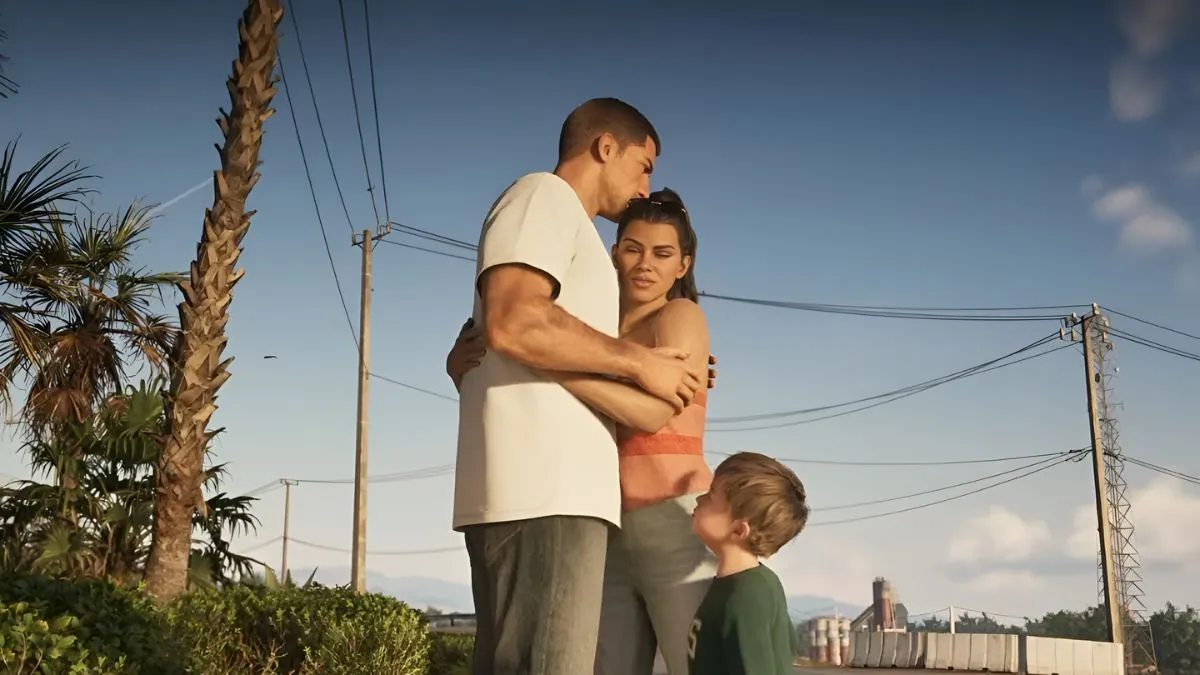
Whether you want to take a cool picture of Jason and Lucia, capture the streets of Vice City, or simply save a funny moment, there are plenty of ways to get creative.
GTA 6 continues the series’ tradition of giving players an in-game phone camera. But there’s also a separate Photo Mode with more options for editing your shots.
That means you have two different ways to take pictures in Leonida.
You can use Photo Mode to create detailed screenshots, or pull out your phone and take pictures just like you would in real life.
There’s even a Selfie Mode that lets you get Jason and Lucia into the frame.
Here’s how to use both features in GTA 6.
How to Use Photo Mode in GTA 6?
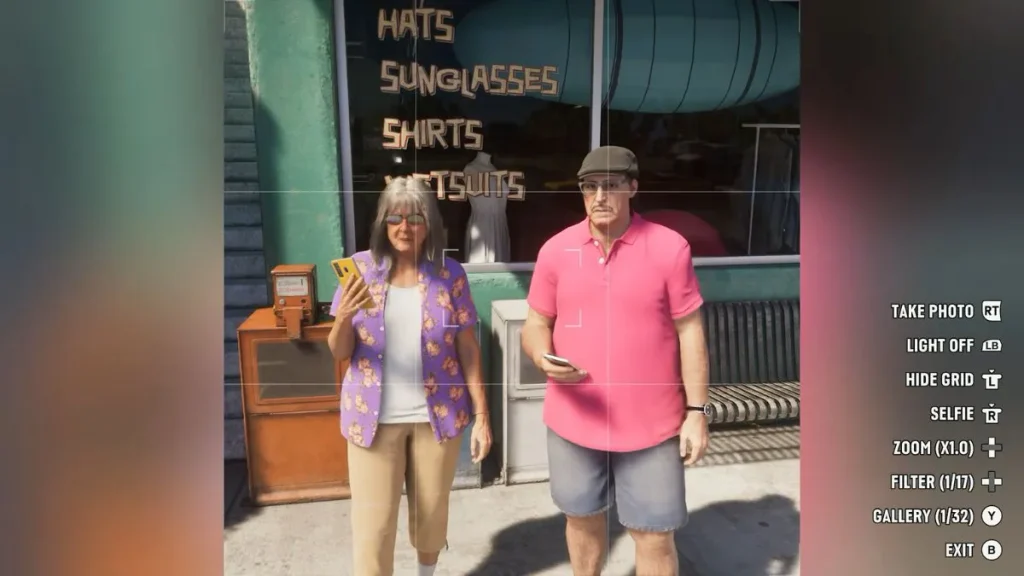
The easiest way to take detailed screenshots is by using the game’s Photo Mode.
To open it, press the Options button on PS5 or the Menu button on Xbox, then select Photo Studio from the menu.
Once you’re inside Photo Mode, you’ll find several settings that let you adjust the look of your picture. You can play around with the camera until you get the shot you’re looking for.
Some of the available options include:
- Aperture: Adjusts how much of the scene appears in focus.
- Brightness: Makes your picture lighter or darker.
- Contrast: Changes the difference between light and dark areas.
- Depth of Field: Lets you blur the background or foreground for a more focused shot.
- Focus Distance: Helps you decide which part of the image should be sharp.
- Filters: Adds different looks to your pictures through the Overlays menu.
You don’t need to wait until you’ve made much progress in the story to use Photo Mode. It’s available from the beginning of the game, so you can start taking pictures as soon as you get the chance.
Just keep in mind that the camera has some restrictions during certain cutscenes. In these moments, you may not be able to move or rotate the camera freely.
How to Take Pictures Using Your Phone in GTA 6?
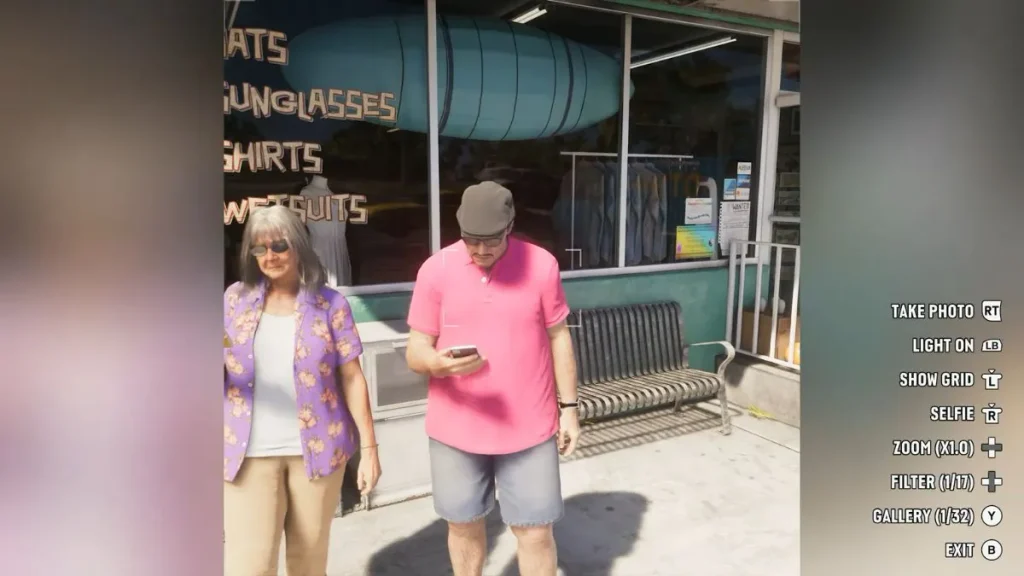
If you don’t want to use the full Photo Mode, you can take pictures using the camera on your character’s phone.
This is a fun way to capture random moments while exploring Vice City, especially when you come across something interesting.
Here’s how to use it:
- Press Up on the D-pad to pull out your phone.
- Open the Camera app.
- Point the camera toward whatever you want to capture.
- Take your picture and save it to your in-game gallery.
The phone camera is fairly simple to use, but it still gives you a nice way to save your favorite moments.
You can store up to 32 pictures in the phone’s gallery, so don’t go taking hundreds of shots and expecting them all to fit.
Compared to Photo Mode, the phone camera is more about having fun and capturing quick moments rather than creating detailed screenshots.
How to Take Selfies in GTA 6?
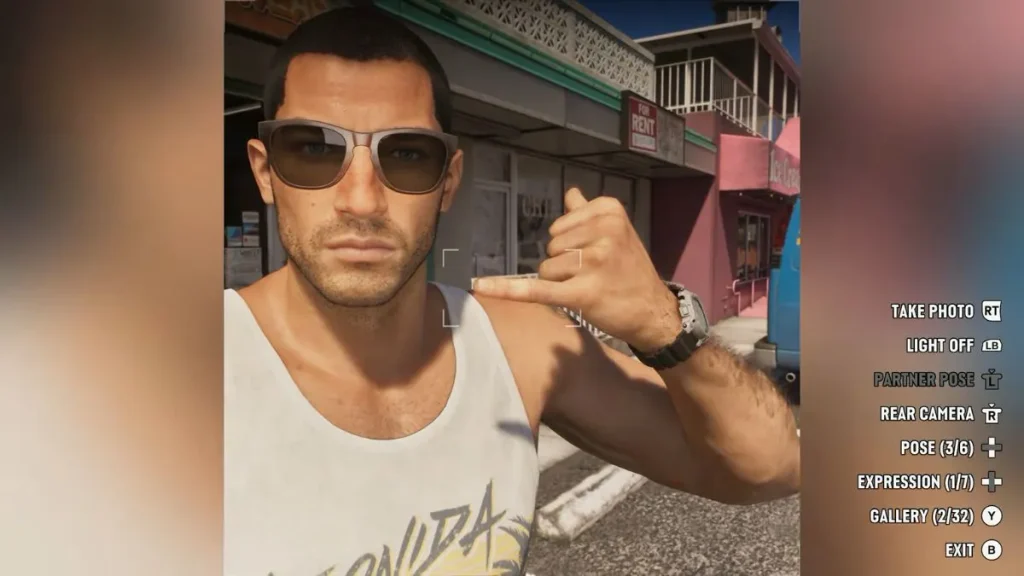
Want to get Jason or Lucia into your pictures? That’s where Selfie Mode comes in.
Once you’ve opened the Camera app on your phone, press R3 on PS5 or click the Right Thumbstick on Xbox to switch to Selfie Mode.
The camera will move to the front of your phone, allowing you to take pictures of your character.
You can also adjust the character’s position in the frame, change their facial expressions, and make them pose for the picture.
This is a great way to take some fun selfies while exploring Leonida.
Whether you’re standing in front of a luxury car or enjoying the view from somewhere in Vice City, you can set up the shot however you like.
When Does the Phone Camera Unlock in GTA 6?
One thing worth knowing is that you can’t use the phone camera right at the beginning of GTA 6.
You’ll need to get through the opening section of the story with Lucia before the feature becomes available.
Once you start playing as Jason, you’ll eventually get access to his phone and the Camera app.
In my playthrough, the camera became available while I was doing some errands around Jason’s house, including fixing the railing.
So, if you open your phone and find that the Camera app isn’t available yet, don’t worry. Just keep playing through the opening missions and check again once you’re controlling Jason.
After that, you’ll be free to take pictures, experiment with Photo Mode, and start filling your in-game gallery with your favorite moments from GTA 6.